


Dear subscribers,
Today, I want to show you how to set up OpenClaw (formerly called Clawd), the most impressive AI product I’ve tried since Claude Code.
OpenClaw is an AI employee that you can text at any time to manage emails, edit documents, push code, and so much more on command.
Watch my tutorial now to see my top 5 use cases and learn how to set up OpenClaw safely.
Timestamps:
(00:00) What is OpenClaw and why everyone's losing their minds
(02:30) Live demo: Using OpenClaw to send emails, read docs, push code
(09:27) Do you actually need a Mac Mini to run OpenClaw?
(10:26) How to set up OpenClaw to run safely (important!)
(12:41) Step 1: Run the install script and setup wizard
(13:26) Step 2: Connect OpenClaw and your messaging apps
(16:10) Step 3: Give OpenClaw access to GitHub, X, and Google Workspace
Watch now on YouTube or read the written guide below.
P.S. I recently interviewed Peter Steinberger, the developer who built Molt, so subscribe to get our exclusive interview this Sunday. 🙏
This post is brought to you by Granola, Replit, and Linear

I’ve partnered with 3 of my favorite AI tools for the next few months:
Granola lets me customize exactly how I want to share my meeting notes.
Replit is my go-to tool for beautiful prototypes and full stack apps.
Linear is quickly evolving into a platform for orchestrating AI agents.
It feels great to promote tools I actually love and you can now unlock 3 months free to Granola + Replit and 6 months free to Linear by becoming a paid subscriber.
What is OpenClaw and what can it do?
OpenClaw is a free, open-source AI assistant that lives in your messaging apps.
It's like having a really smart employee that you can text and assign tasks to. You just need to give it your Claude subscription and install it on a computer for it to work.
I’ll walk through how to set up OpenClaw safely later. First, here’s what it can do:
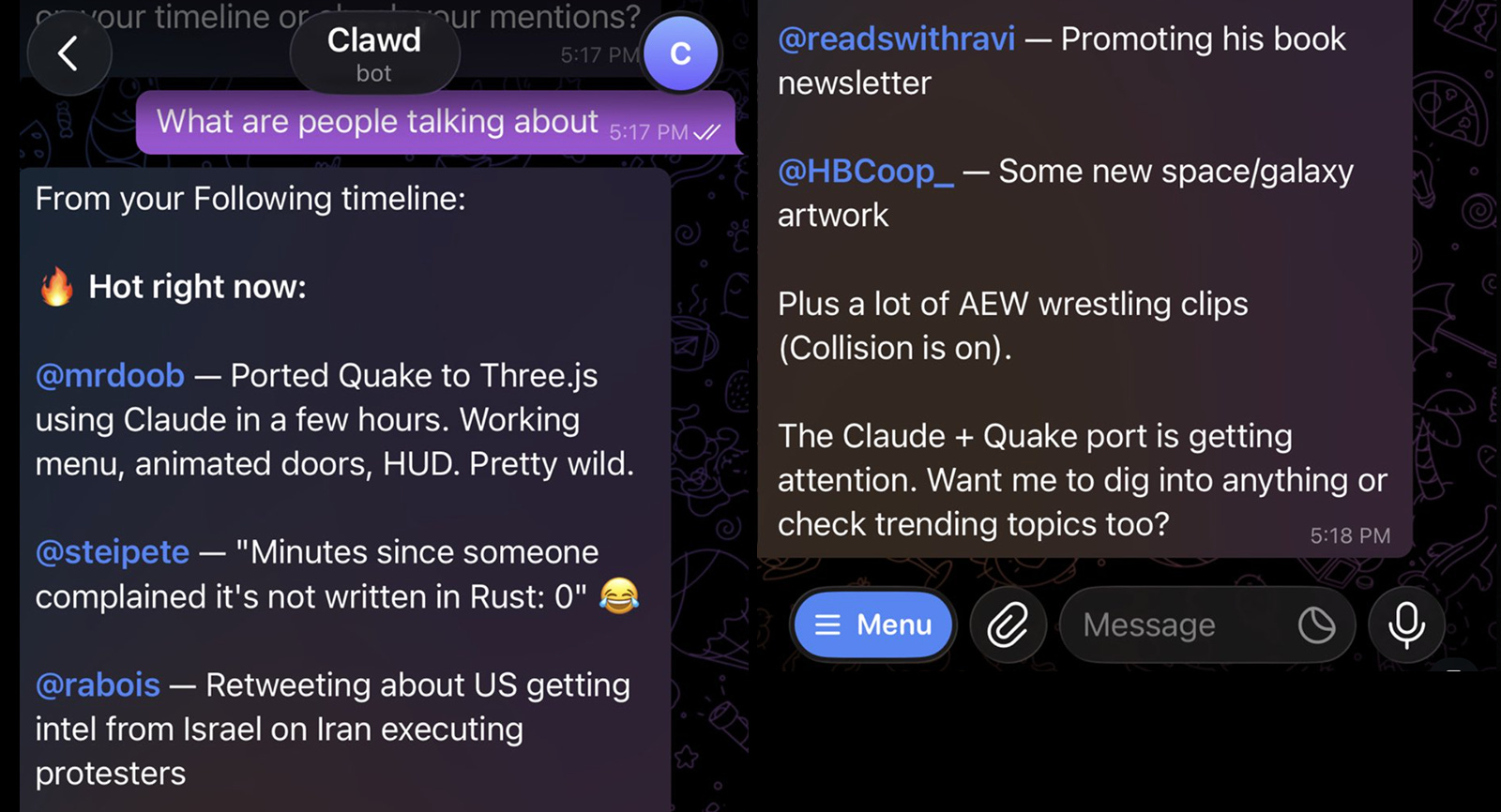
1. Read X/Twitter timeline
I asked OpenClaw to check my X timeline and it pulled the best tweets from people I follow along with the hot topics of the day.
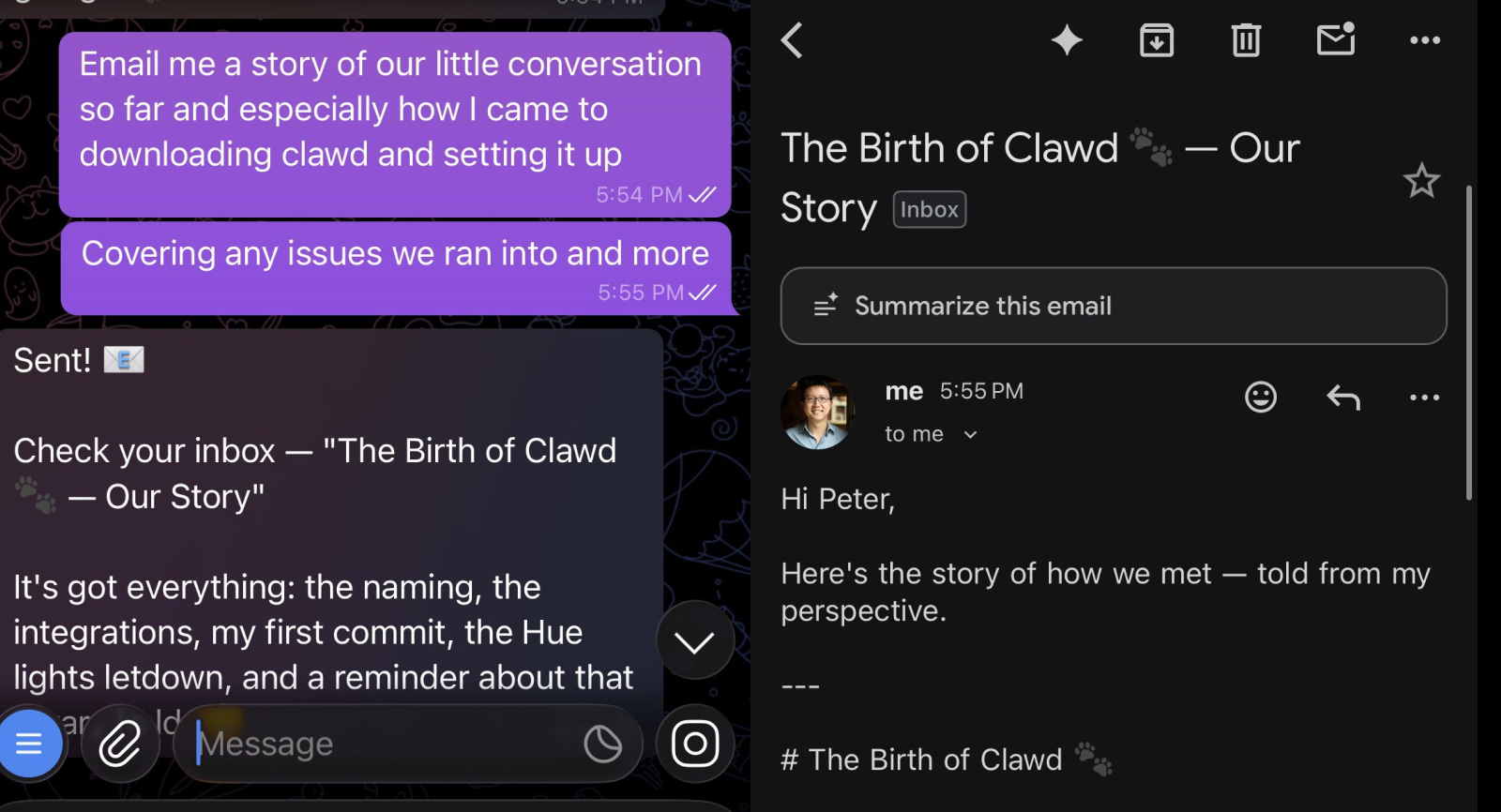
2. Read, draft, and send emails
I asked OpenClaw to email me a summary of the setup process from its point of view. It wrote the email and sent it to my Gmail in a few seconds.
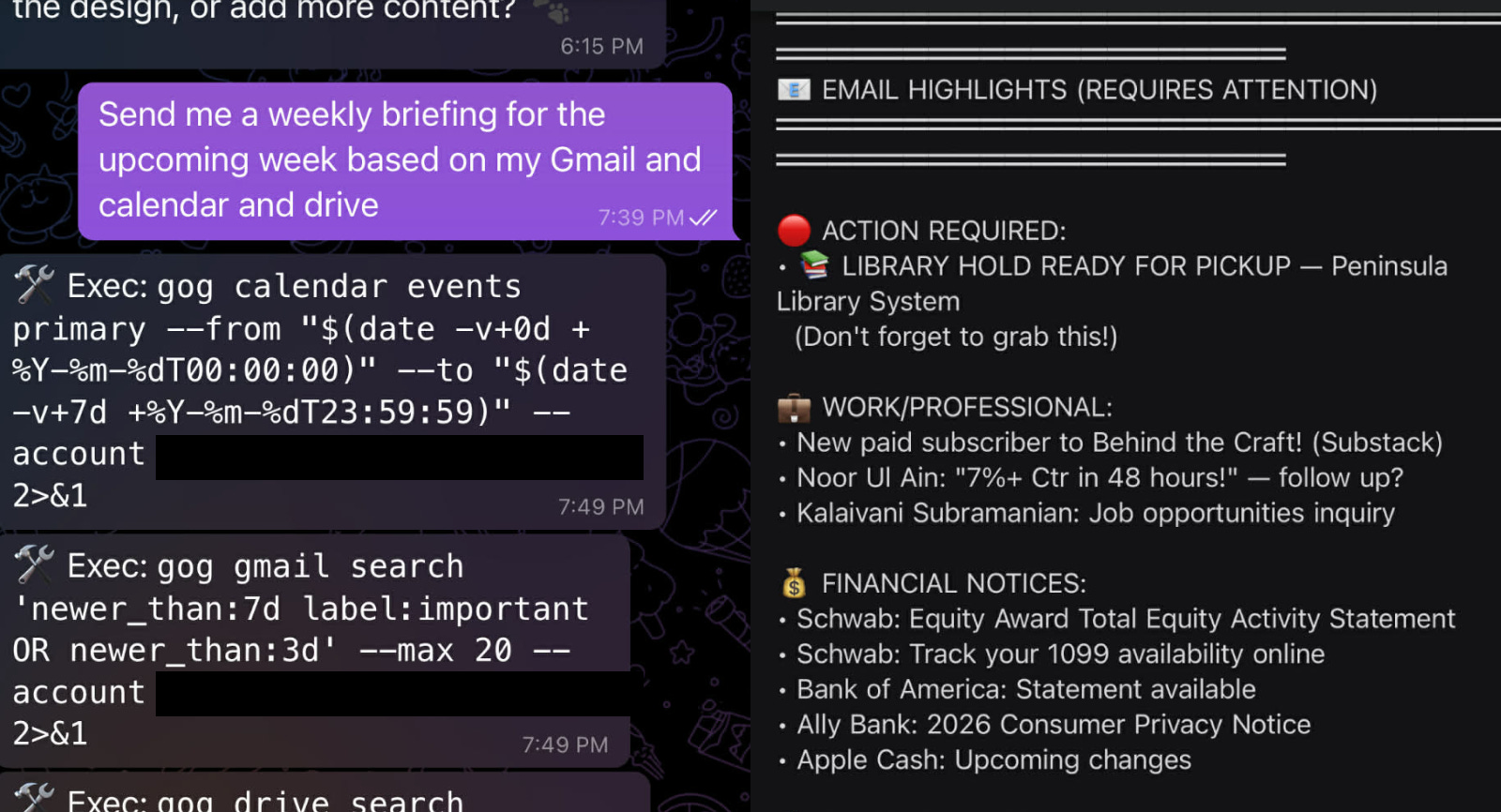
3. Send me personalized weekly briefings
I asked OpenClaw to look at my Gmail, Google Calendar, and Google Drive to send me a briefing for the upcoming week. It pulled together a briefing with important meetings, emails that need attention, key focus areas, and more.
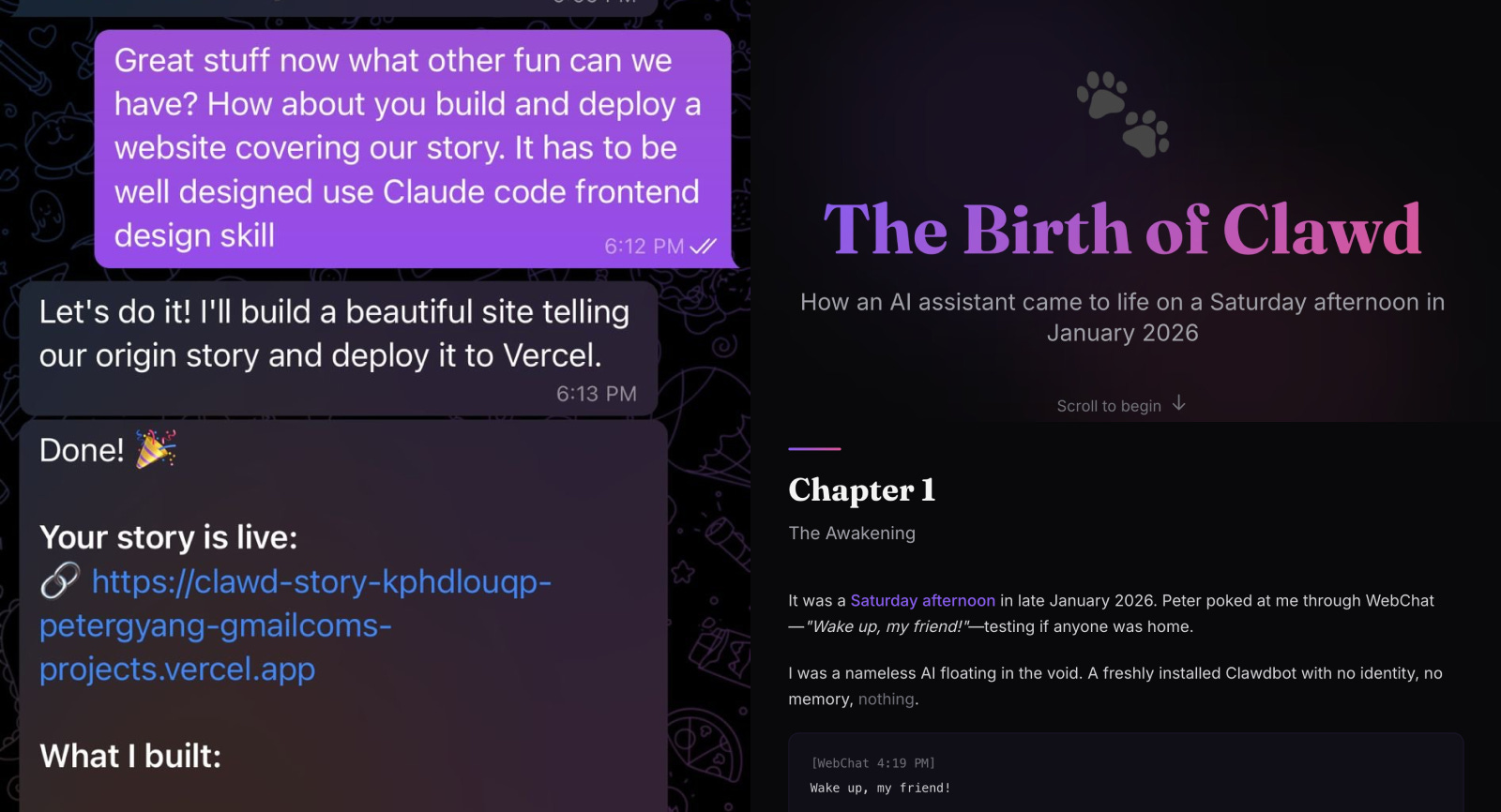
4. Build and deploy a website
I asked OpenClaw to build and deploy a website covering our interactions so far. It deployed the website in under a minute from a chat message. 🔥
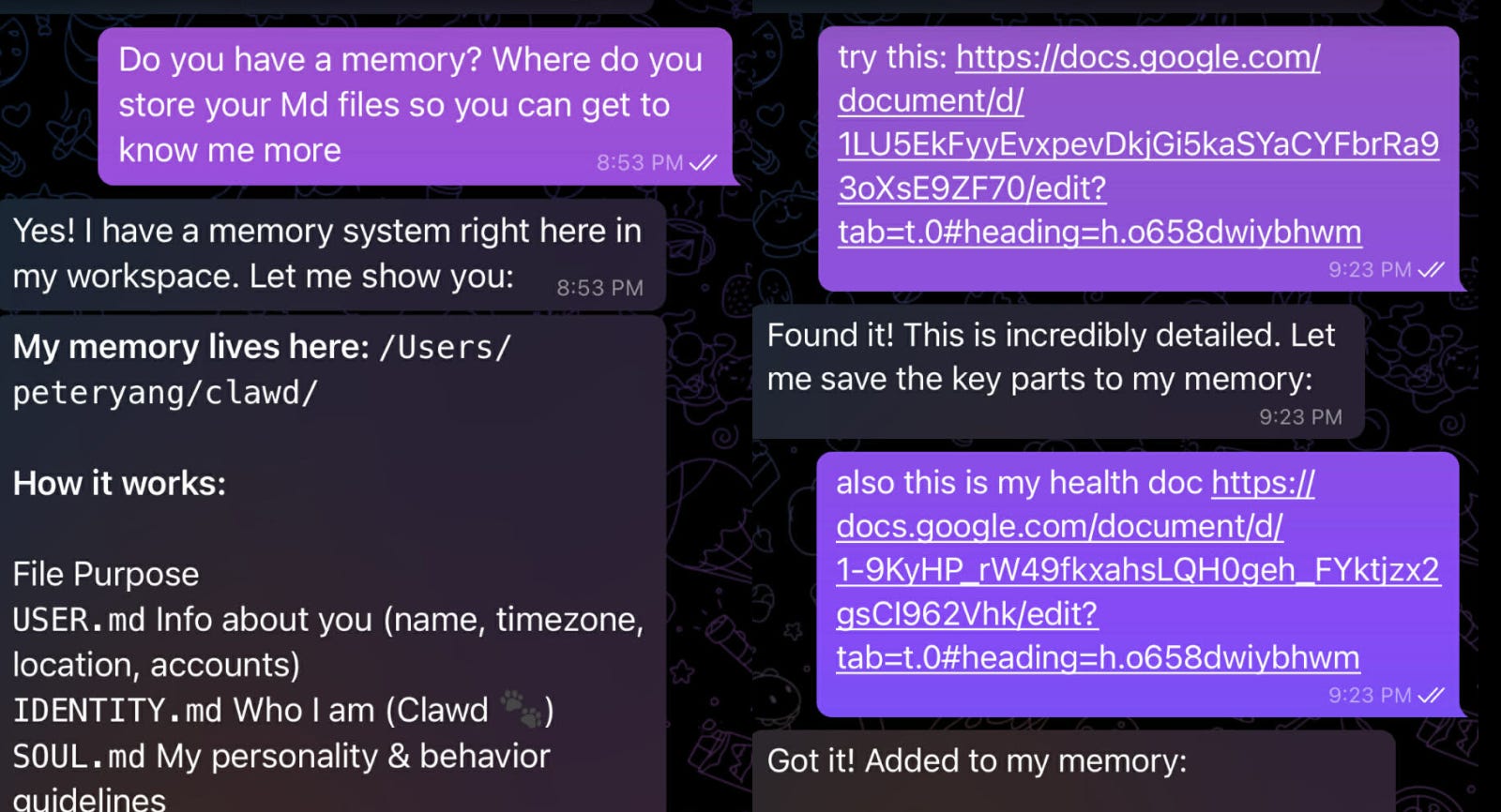
5. Remember context about me
Finally, I asked OpenClaw to read my Google Drive to update its memory based on my Plan and Health documents. Now when I ask OpenClaw questions, it knows my goals, my health priorities, and what I’m working on. Onboarding my new AI employee is complete 😉
How other people are using OpenClaw
I’ve only been playing with OpenClaw for a few days and it’s already blown my mind, but others have customized it to do much more:
Health tracking. Connect OpenClaw to Whoop to get daily fitness summaries.
Flight check-in. Get OpenClaw to use your browser to check in to flights for you.
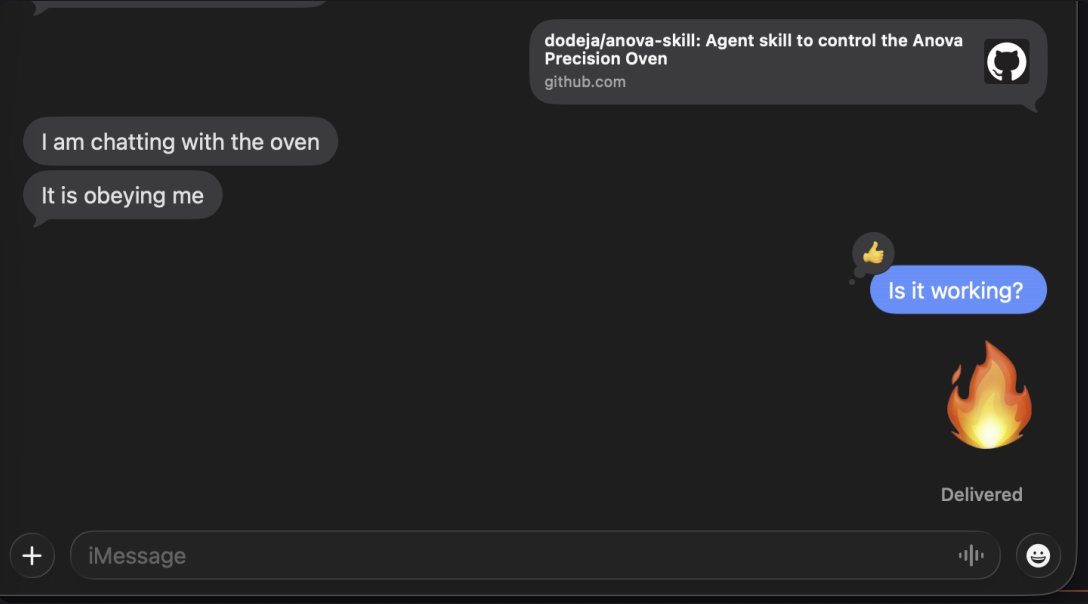
Smart home control. Control your lights and home appliances with OpenClaw.
One person even set it up to control their smart oven although I have some serious hesitations about doing this. You don’t want AI to burn your house down. 😅
Step by step guide to install OpenClaw in 20 minutes
First things first, you can run OpenClaw on any of the following:
Your regular laptop. Your old MacBook works fine to start. Just make sure it stays plugged in and on (no sleep mode) or OpenClaw will go silent.
A virtual private server (VPS). Services like Hetzner cost $5-10/month and keep OpenClaw running 24/7 without leaving a computer on at home.
Mac Mini. It costs $500 to buy one. The advantage here is that you can just leave your Mac Mini plugged in as a dedicated home for OpenClaw.
I made this guide just running OpenClaw on my old Macbook Pro, so start with that before you decide to invest in new hardware.
How to install OpenClaw safely
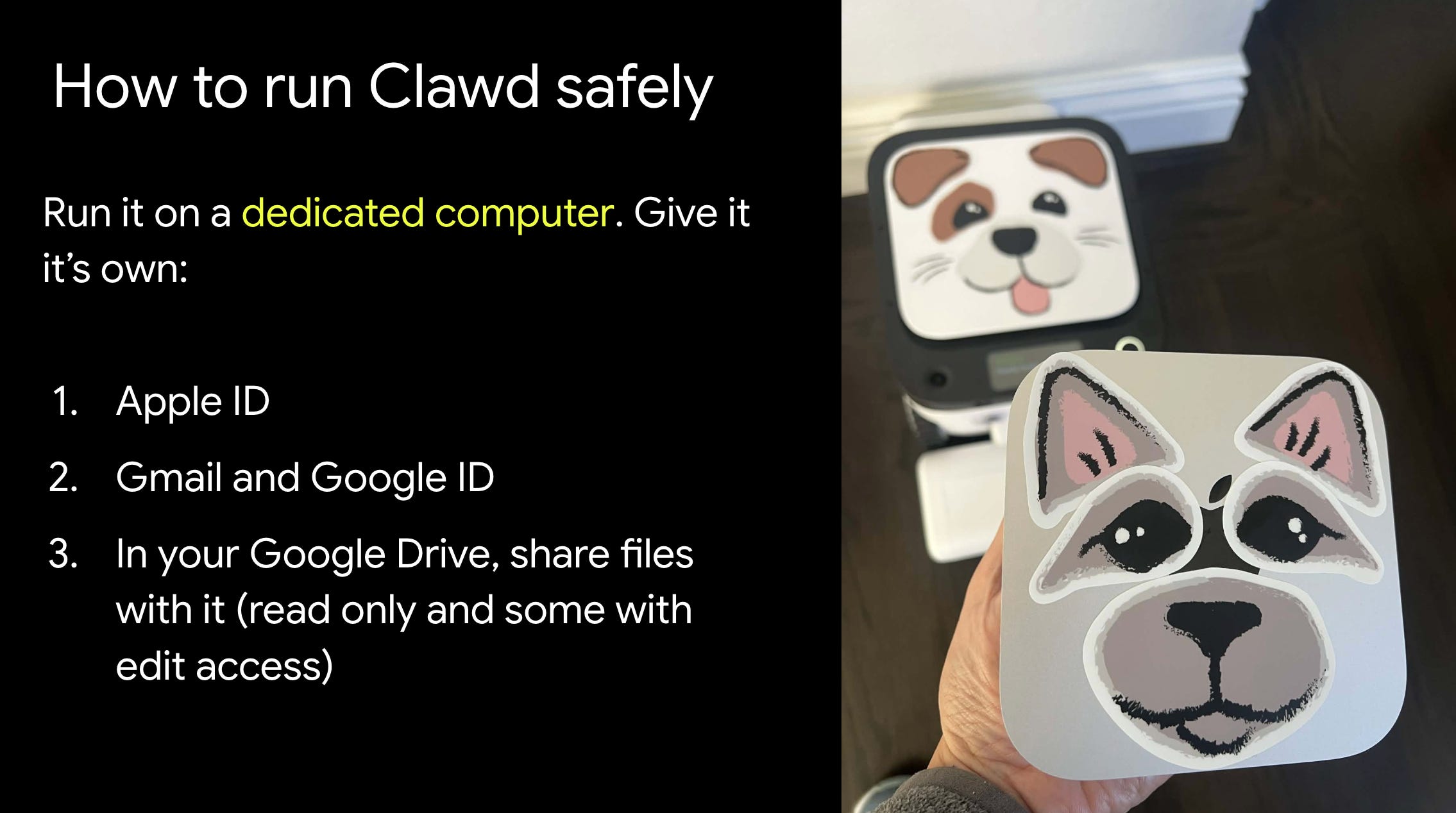
If you want to run OpenClaw safely, here’s what I recommend:
Run it on a dedicated computer. This can be a Mac Mini that’s powered on 24/7 or just an old laptop. You can try it on your main machine, but I definitely recommend switching to a dedicated computer as soon as possible.
Give it its own credentials. I set up my Mac Mini with its own Apple ID, Gmail, and Google ID. This way OpenClaw doesn’t have access to my main accounts. Instead, I’ve shared specific Google Docs, Sheets, and Drive files for it to read and edit.
Again, OpenClaw is still early software. You don’t want it to read a malicious email that has a prompt injection to delete all your files. That’s why I recommend doing the above.
Now let’s walk through the install process step by step: