


Dear subscribers,
Today, I want to share 5 real use cases for Gemini inside Google Workspace.
If you’re like me, you probably do most of your work in Google Sheets, Docs, Slides, and Drive. And for a long time, Gemini in Workspace just wasn’t great.
So when Google announced a big Workspace update recently, I was skeptical. Well, I’m happy to report that Gemini in Google Workspace is now much better.
Watch my tutorial to see what’s great and what still needs work across 5 use cases.
Timestamps:
(00:00) Why Gemini in Workspace is actually useful now
(00:51) Sheets: Researching kid summer camps
(03:26) Sheets: Building a Bay Area family budget
(07:04) Docs: Planning our next vacation destination
(09:08) Docs: Writing a script for an upcoming talk
(12:04) Slides: Generating beautiful slides from the script
(15:54) Honest rankings: Gemini in Sheets, Docs, Slides, and Drive
(17:44) Why Google has golden opportunity that might close soon
Watch now on YouTube or read the written guide below.
I’m proud to partner with Replit

Replit's new Agent 4 can one-shot beautiful slide decks. For example, Karpathy published new data on which industries and jobs are most likely to be disrupted by AI.
I pasted the cloned GitHub into Replit and it made this beautiful slide deck (spoiler: according to this dataset, lawyers are most likely to get disrupted outside of tech).
Replit is my go-to tool for generating slide decks because it has genuine design taste and can generate images too. Try it by selecting “Slides” and sharing your prompt.
1. Sheets: Researching Bay Area summer camps
Let’s start with Gemini in Google Sheets.
If you’re a parent in the Bay Area, you know that finding summer camps for your kids is basically the Hunger Games. You’re competing with every other parent to find and register before spots fill up.
Let’s open a new Google Sheet and ask Gemini to:
Create a sheet of the top 10 summer camps in the Bay Area for my 7 year old. Include columns for: name, location, age range, type (sports, STEM, arts, nature, etc.), dates, and a short description.
Gemini will create a plan first for you to review. Approve the plan and let it build. After a few minutes, you should get a spreadsheet like this:
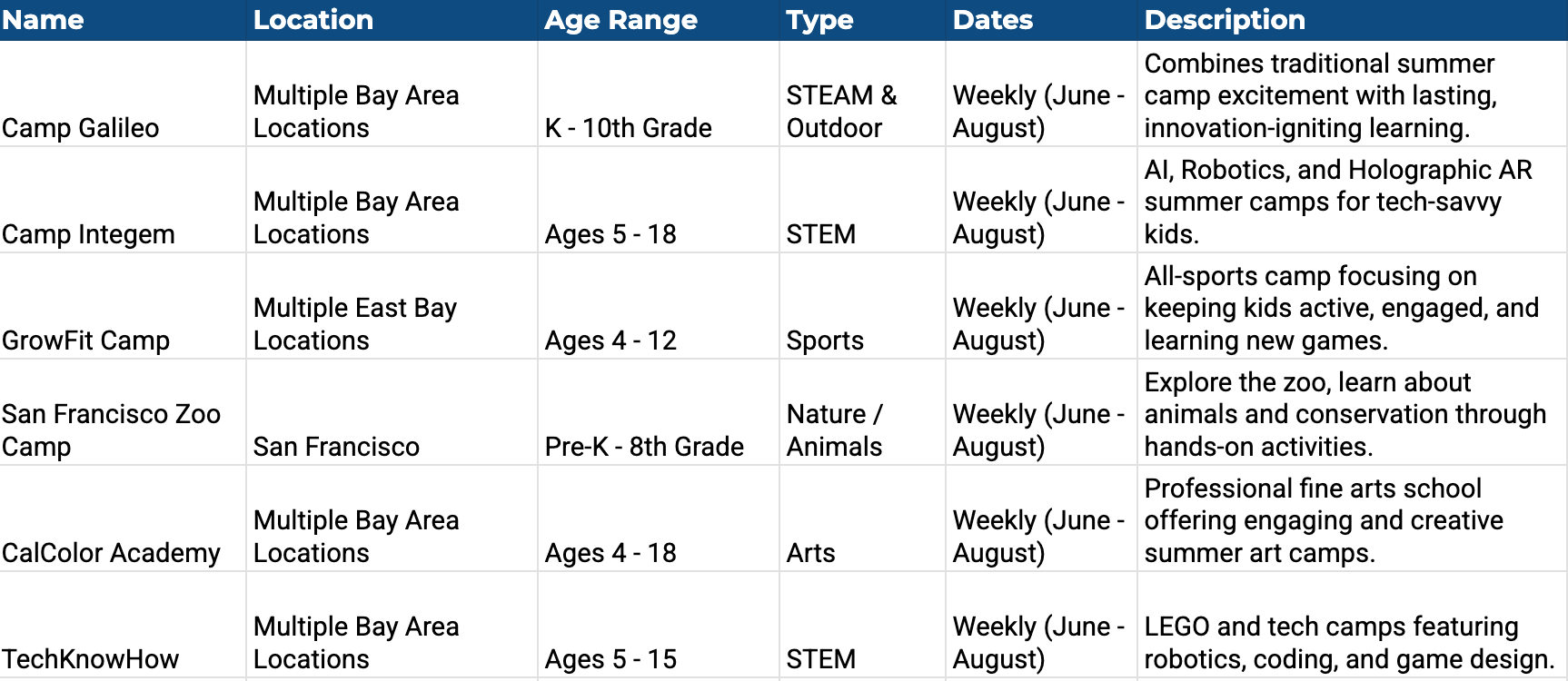
Now there’s one very important column that’s missing: the price. Add a new column called “Weekly Cost” and type this formula:
=ai(”Get the weekly price for this camp”)
Gemini will search the web and fill in real price data. Now here’s the magical part: drag that cell down to fill the rest of the rows. Gemini will run a separate web search for each camp and fill in the prices automatically.
One thing I wish it did by default is show where it’s pulling the data from. You can fix this by updating the formula to include sources:
=ai(”Get the weekly price for this camp and include a source link”)
2. Sheets: Building a Bay Area family budget
Since we’re already in Sheets, let’s find out how much it really costs to live as a family of four in the Bay Area. Here’s the prompt:
Create a monthly budget for a family of four in the Bay Area in 2026. Include typical tech income (two working parents) and expenses: mortgage, childcare, groceries, transportation, healthcare, insurance, utilities, dining out, travel, and more. Add columns for category, estimated monthly cost, and your notes.
Gemini will make a plan again. Approve it and wait for the sheet to generate. Here’s the family budget that it made for me: