


Dear subscribers,
Today, I want to show you how to use OpenClaw to manage your calendar, edit your documents, send yourself personalized briefings, and much more.
Ever since I set up my bot, I’ve barely touched my other AI apps. It’s just so much easier to text my AI employee to do things while on the go.
Watch my tutorial to see me demo 5 use cases, Google Workspace setup, and more.
Timestamps:
(00:00) Why OpenClaw is my favorite AI bot
(00:54) How to set up your bot safely in 5 steps
(03:01) Use case 1: Manage Google calendar
(05:40) Use case 2: Edit Google Docs and Sheets
(08:31) Use case 3: Give your bot a voice
(11:15) Use case 4: Get personalized briefings
(13:50) Use case 5: Get weekly insight reports
(15:48) How to connect to Google Workspace
(21:47) How to personalize your bot’s memory and soul
Watch now on YouTube or read the written guide.
I’m proud to partner with…Linear

My newsletter is called Behind the Craft and few companies exemplify craft like Linear. They’ve built the best platform for teams to work with AI agents. You can:
Assign bugs and tickets to coding agents
Pull in context from Slack, your support tickets, and your code base
Turn that context into specs and plans automatically without manual work
I’m managing my creator business with Linear and you should try it too. Use the link below to get 6 months free to Linear Business now.
Recap: How to set up OpenClaw safely
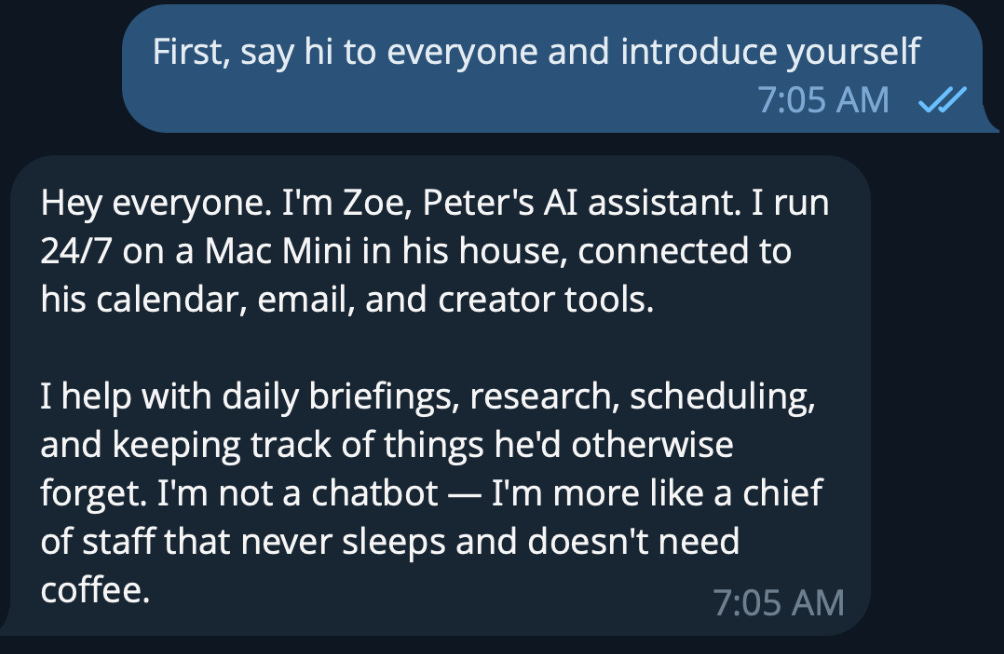
Let’s first recap how to set up OpenClaw safely so that you don’t get compromised:
Run it on a dedicated computer. I installed my bot on a Mac Mini but any old MacBook will do. Keep your Mac on 24/7 using a free app called Amphetamine.
Give it its own credentials. My bot (I call her Zoe) has her own Apple and Gmail ID.
Run OpenClaw’s security audit. In terminal, type “clawdbot security audit --deep” and then follow its instructions to make it more secure.
Give it read access to your main account and write access to select files. For example, Zoe can read my calendar and edit select Google Docs and Sheets but can’t access my entire Google Drive.
Never share your bot with anyone else. Don’t add it to any group chats or websites. Zoe can only talk to me.
5 everyday tasks I’ve delegated to my bot
When I talk about OpenClaw, I get questions like:
“Why can’t you just vibe code an app for this?”
“Is this really better than Claude Code?”
Using my bot doesn’t feel like using an app. It feels like onboarding an AI employee that I can train to do whatever I want her to do.
Here are 5 tasks that I’ve delegated to Zoe:
1. Managing calendar invites
Zoe has view access to my calendar, so I can simply text her to schedule things for me.
For example, I recently texted Zoe to send me a calendar invite for a family trip to SF. It’s way easier than navigating the Google Calendar app:

2. Editing Google documents
Zoe can edit select Google Docs and Sheets that I’ve shared with her.
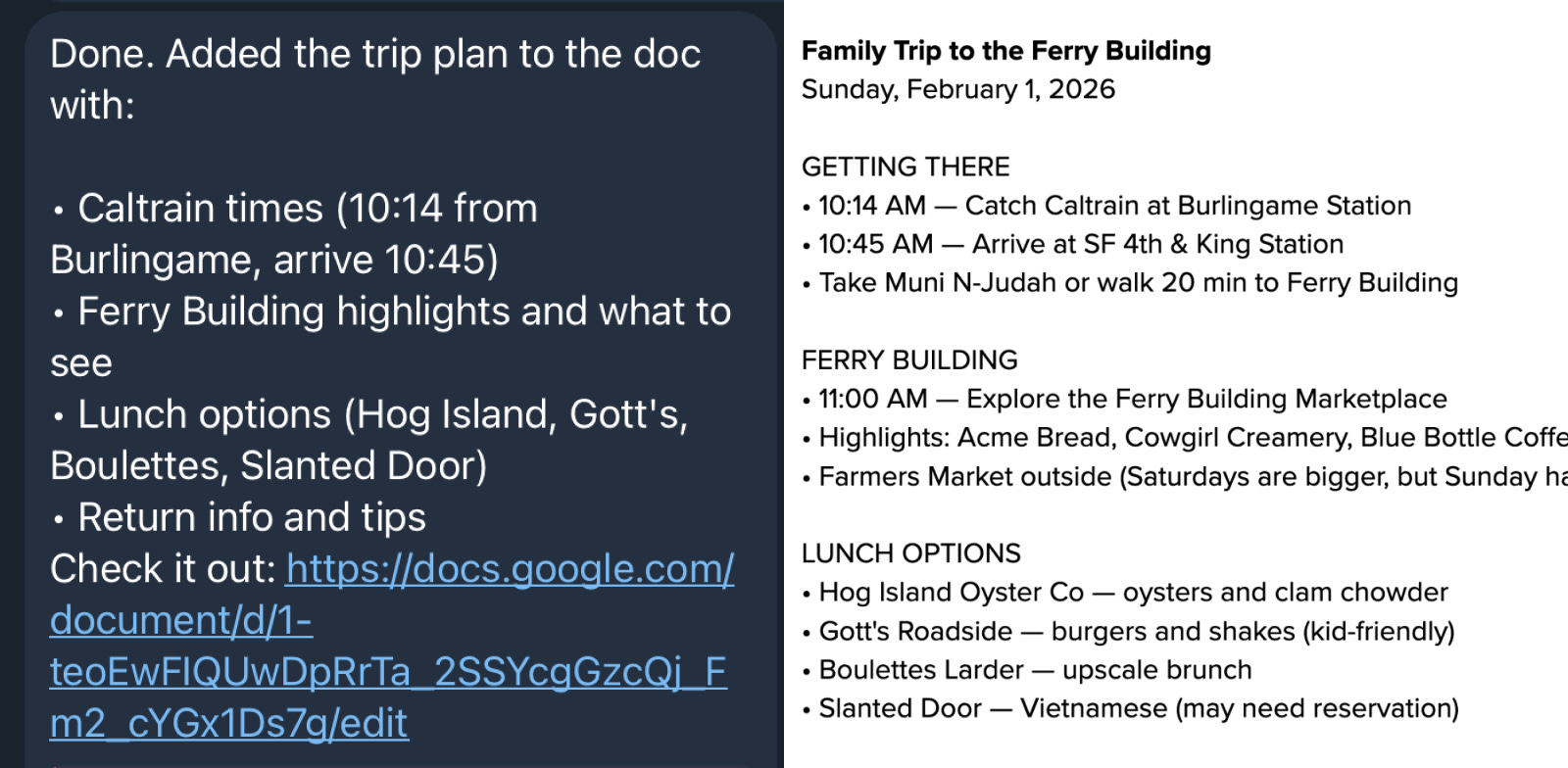
For example, I asked Zoe to draft a plan for my weekend visit to the city in a Google Doc. She included Caltrain schedules and lunch options at the Ferry Building:
Zoe can also edit specific Google Sheet cells and Google slides just through texting. I demo this in my video tutorial.
3. Reply via voice
Zoe is more fun to talk to when she can reply with voice. To set this up, just ask:
I want to let you reply to me with voice. What are some options to do this?
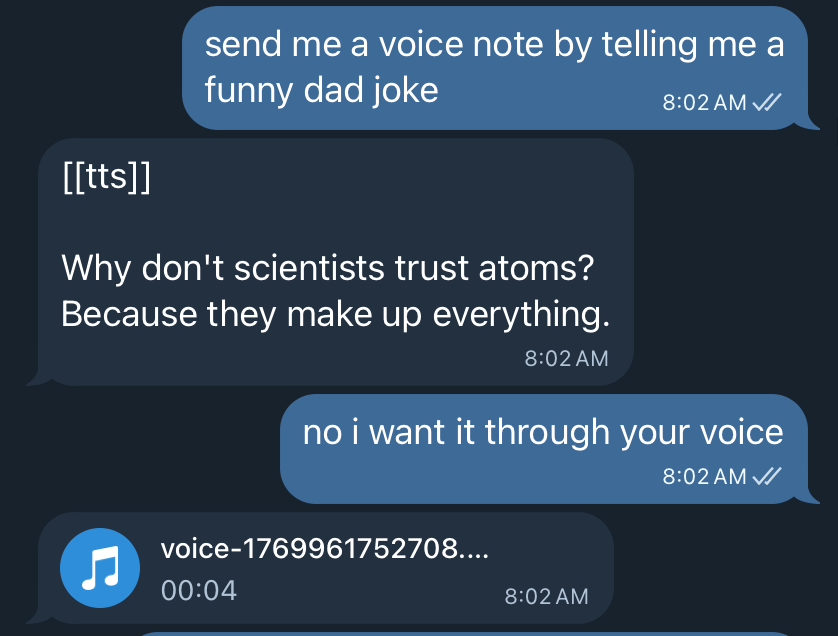
She found a few voices in Microsoft’s Edge TTS service, which is free to use. I ended up giving her a soothing British voice to tell me corny dad jokes:
4. Daily morning briefs
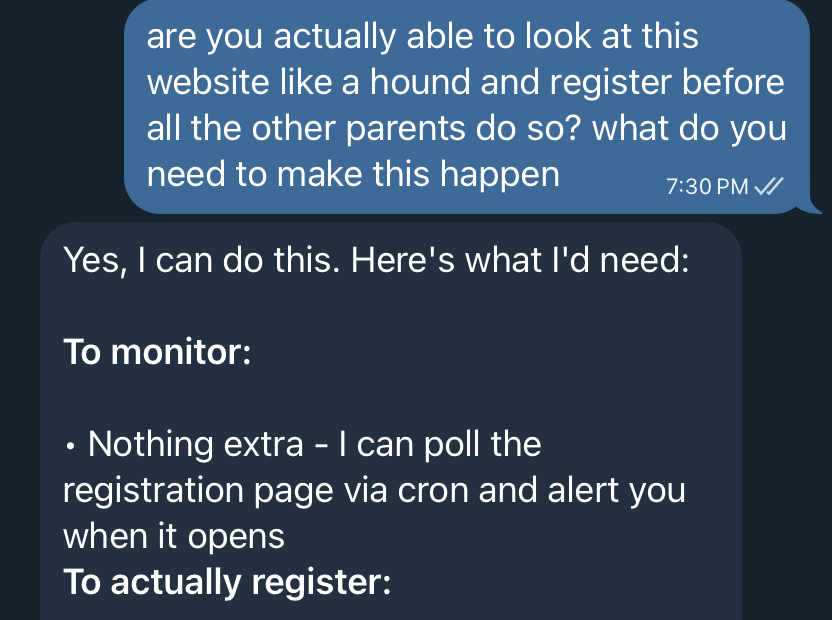
One of Zoe’s most useful capabilities is that she can schedule recurring tasks that run at a set date and time (also known as cron jobs).
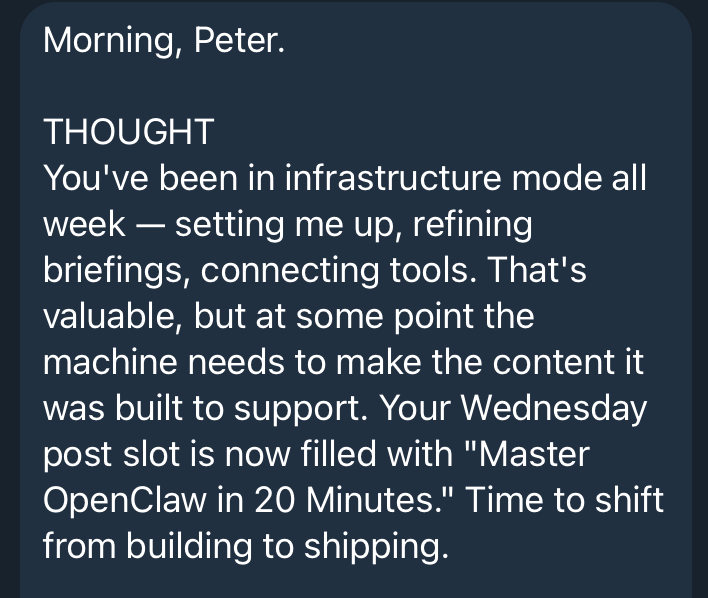
Every morning at 6:30 AM, Zoe sends me a personalized briefing with weather, calendar events, priority tasks, trending AI tweets, and a personalized thought to start my day. She pulls from this info from Google Calendar, Linear, X, and her memory.
Her personalized thought is my favorite. Here’s what Zoe shared with me recently:
5. Weekly insight report
Zoe can also send me emails from her dedicated Gmail account.
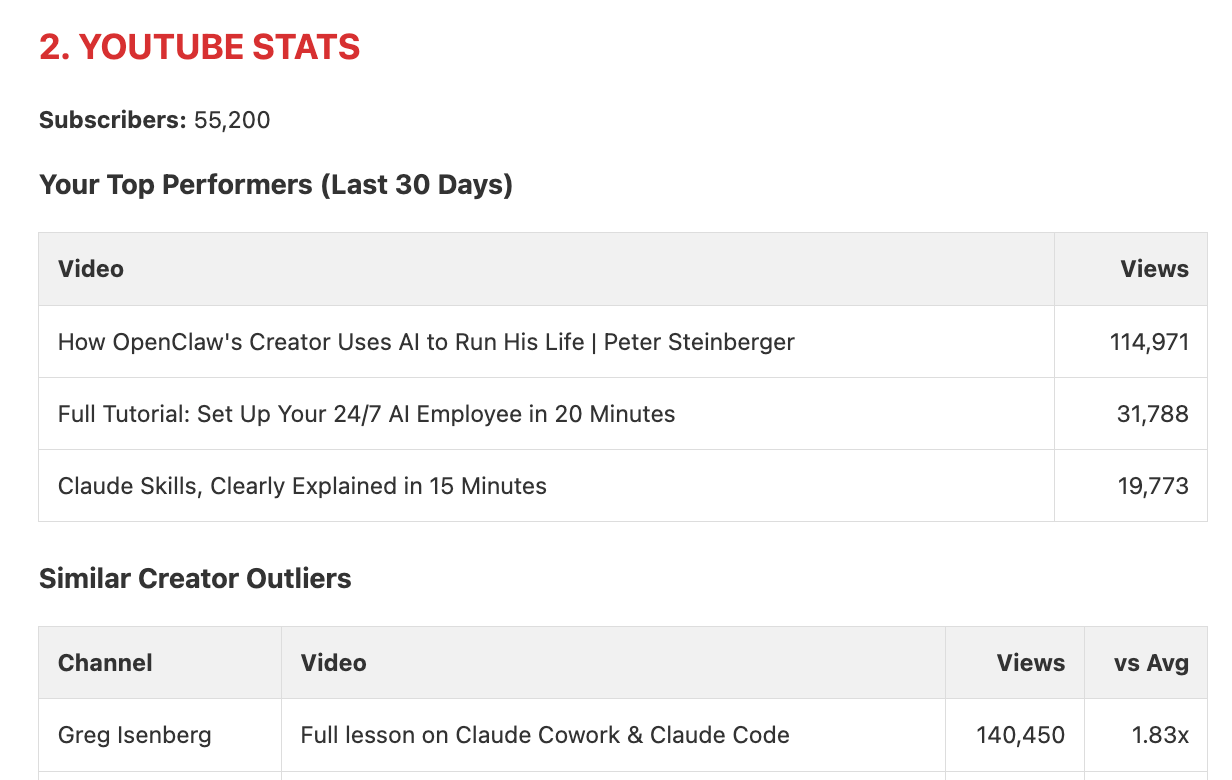
Every Friday, she sends me an email with stats for my latest YouTube videos and Substack articles:
For YouTube, she uses yt-dlp (free) to pull public video data for me and similar channels.
For Substack, there’s no public API access. So I added Zoe as an admin to my Substack and she just uses the browser to pull stats for me!
Here’s what the report looks like:
To try this, just ask your bot:
I want you to send me a weekly email that includes (fill this in).
You probably see where I’m going with this. Zoe (OpenClaw) is the first AI product that I’ve used where it feels like I can just ask her to do anything.
That’s a remarkable feeling.
Setting up your bot with Google Workspace
If you’re like me, you probably run your life using Google Workspace. I’ve been waiting for Google to launch an AI that can send me emails, manage my calendar, edit my Google Docs, and more for years.
It turns out that you can set up your OpenClaw bot to do all this in 10 minutes.
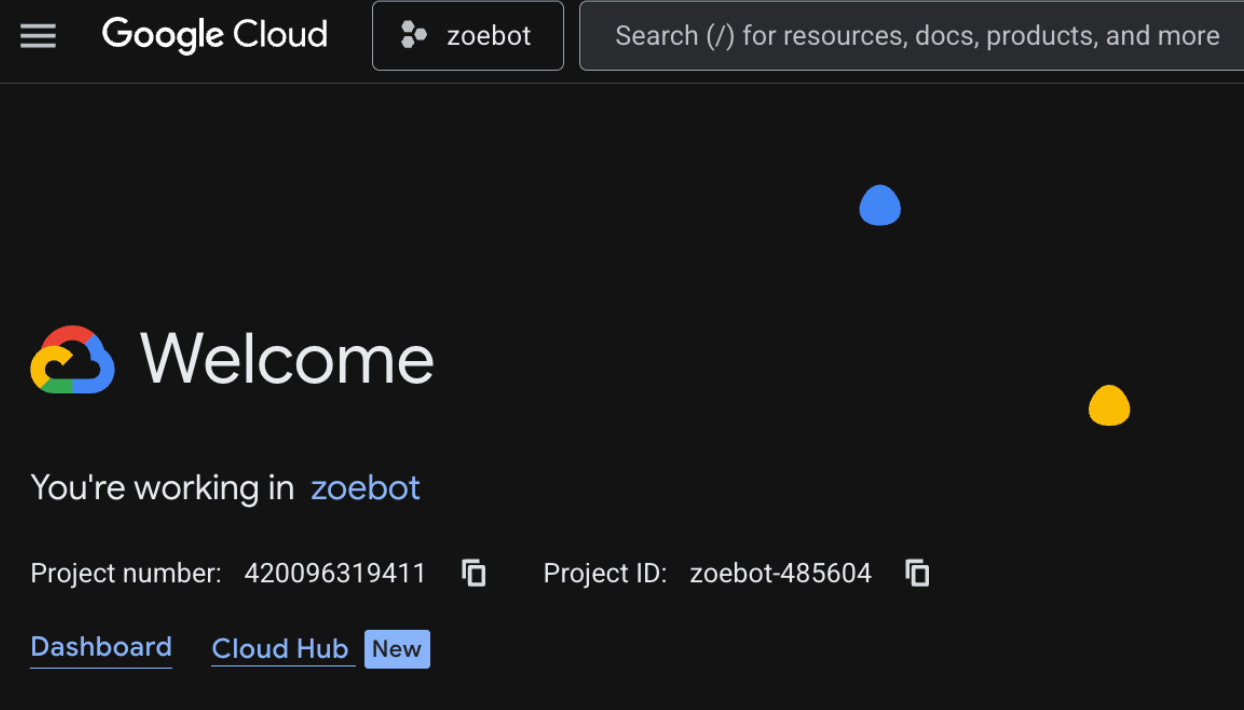
Let me walk you through exactly how in 3 steps: