


Dear subscribers,
Today, I want to show you how to prompt Gemini’s Nano Banana model to create beautiful infographics that match your brand every time.
Here’s the problem: If you just ask Nano Banana Pro to “create an infographic” it’ll create a cluttered mess full of generic clip-art and text.
Watch my tutorial to create infographics that match your brand in 5 steps.
Timestamps:
(00:00) Why most AI infographics look terrible
(01:03) Step 1: Use regular Gemini (to save money)
(02:18) Step 2: Work with AI to create a style guide
(05:55) Step 3: Prompt Nano Banana in two steps
(07:23) Step 4: Customize the prompt for your brand
(09:17) Step 5: Iterate with AI and save your prompt
Watch now on YouTube or read the written guide below.
This post is brought to you by…Framer

Framer recently launched Design Pages to become much more than a “website builder”. Design pages lets you sketch, refine, and create everything from websites to social assets, campaign visuals, icons, and more.
The real power comes from how seamlessly Design Pages connect to the rest of Framer. Any design can become a live, production-ready website with one click. No Figma imports. No HTML pastes. No extra tools. Start creating for free here, and use code PETERYANG2025 for a free month of Framer Pro.
What we’ll build: A prompt to create beautiful infographics that match your brand every time
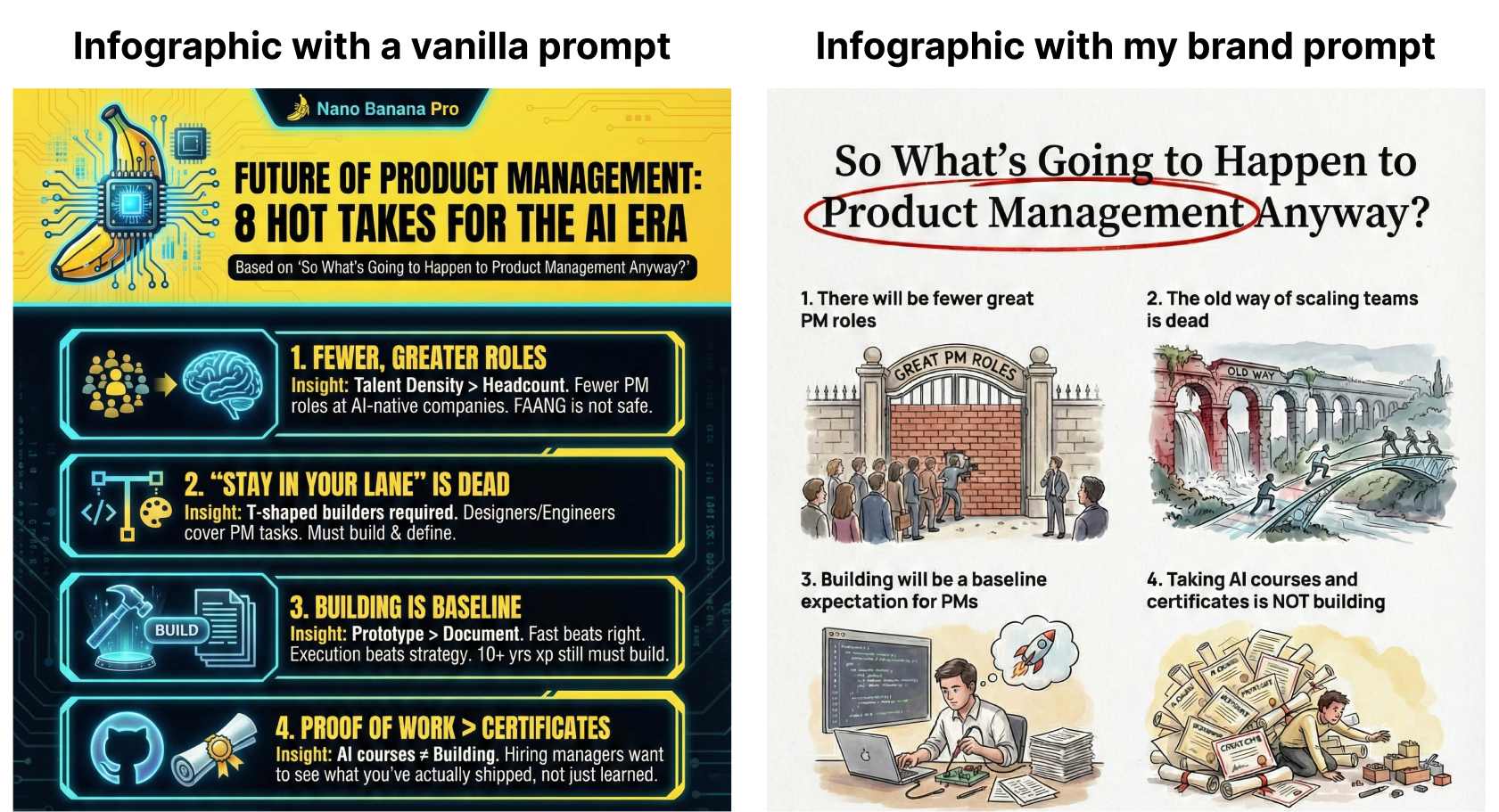
Below’s a comparison of two infographics for my recent So What’s Going to Happen to Product Management Anyway? post:
Left: I just wrote “Create an infographic for this: (paste post).”
Right: I used a prompt that I created by following the 5 steps below.
You can see the difference between the AI slop on the left and an infographic that you’ll actually want to share on the right. Let me show you how I did this below.
1. Use regular Gemini (to save money)
There are three ways to access Nano Banana:
Gemini: Free to try and lets you chat with AI to iterate. Images have a small Gemini watermark at the bottom right that you can easily remove later.
NotebookLM: Free to try but doesn’t let you iterate after generating the image which is a deal breaker for me.
AI Studio: Gives you the most control and doesn’t have the Gemini watermark. However, you have to pay (it’s $0.13-0.24 per image).
Since I’m cheap and I want all of you to try this, let’s just stick with regular Gemini. Just be sure to prompt “use Nano Banana Pro” so that it uses the latest Gemini model.
2. Work with AI to create a style guide
This is the key step. Your style guide should include all of the following:
Aspect ratio. Choose 9:16 (vertical), 16:9 (horizontal), or square. I prefer 9:16.
Resolution. Choose at least 1K resolution. You can also go for 2K or 4K.
Colors. Choose a primary color, 2-3 secondary colors, and a background color.
Typography. Choose your desired font style and size for title and body text.
Layout. Choose your ideal layout (e.g., a grid with generous whitespace).
Illustration. Choose the illustration style. You can also refer to an existing style (e.g., illustrations should look like New Yorker or HBR cartoons).
It’s really important to describe all this in detail to get infographics that match your brand. For the illustration style, try uploading a few infographics that you like and asking AI to create the style, texture, concept, palette and more.
Below’s my detailed AI prompt to create infographics that have a beautiful hand-drawn illustration style (I’ve also added it to my prompt library for paid subscribers):
Create a 9:16 infographic (1K resolution) with Nano Banana Pro using the text that I’ll share with you next.
ILLUSTRATION